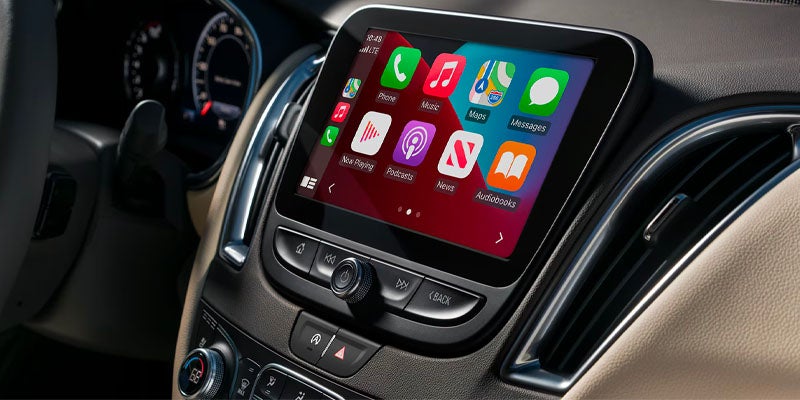





With the latest advancements in automotive technology, staying connected while driving has never been easier. Thanks to Android Auto™ and Apple CarPlay®, you can seamlessly integrate your smartphone with your vehicle's infotainment system, allowing for hands-free calls, navigation, music, and much more. At Preston Chevrolet in Burton, OH, we’ve put together this guide to help you connect Android Auto™ and Apple CarPlay® to your Chevy and enjoy a smarter, safer driving experience. Android Auto™ If your Chevy is compatible with Android Auto™, you can access your Android phone’s features through your vehicle’s infotainment system, such as: Make and receive calls Use Google Maps™ for navigation Play music from your favorite apps Get hands-free help with Google Assistant™ How to Connect Android Auto™ via USB Park Your Vehicle: Make sure your vehicle is parked before starting the connection process. Connect Your Phone: Using your phone's cable, connect it to the USB data port in your vehicle. It’s recommended to use the USB cable that came with your phone to avoid connectivity issues. Install the App: If Android Auto™ is not already installed on your Android device, go to the Google Play Store and download the app. You may also be prompted to update certain apps like Google Maps. Launch Android Auto™: If the app doesn’t automatically launch, tap the Android Auto™ icon or the Projection icon on your vehicle’s touchscreen. Follow Prompts: Follow the on-screen instructions on both your vehicle and phone to complete the connection. You may need to accept terms and conditions before using the app. Access Android Auto™: Once connected, the apps available on your phone will be displayed on your car’s touchscreen. How to Connect Android Auto™ Wirelessly Ensure Your Vehicle is Parked: Make sure your vehicle is parked before starting the process. Download Android Auto™: If you haven't already, download the Android Auto™ app from the Google Play Store and update any necessary apps. Connect via Bluetooth®: Tap the Android Auto™ icon on your Chevy’s display, then pair your phone with the car’s infotainment system using Bluetooth®. Accept the Connection: Follow the prompts on both the vehicle’s screen and your phone to establish a wireless connection. Start Using Android Auto™: Once connected, you can use Android Auto™ without the need for a USB cable. Apple CarPlay® Apple CarPlay® enables you to access your iPhone’s features and apps directly from your Chevy’s infotainment system. You can get directions, make calls, send and receive messages via Siri®, and enjoy music—all while keeping your hands on the wheel. How to Connect Apple CarPlay® via USB Connect Your iPhone: Plug your iPhone into the vehicle’s USB data port using a Lightning cable (USB-A or USB-C depending on your model). Unlock Your iPhone: Make sure your iPhone is unlocked when connecting. Enable Apple CarPlay®: A consent pop-up will appear on the screen to enable Apple CarPlay®. Follow the on-screen prompts to continue. Launch Apple CarPlay®: If the app doesn’t open automatically, press the Apple CarPlay® icon on the infotainment screen. Access Your iPhone Apps: Once CarPlay® is activated, you’ll see the compatible apps from your iPhone on your vehicle’s screen. How to Connect Apple CarPlay® Wirelessly Pair Your iPhone via Bluetooth®: In your vehicle’s infotainment system, connect your iPhone to the Bluetooth® system. Start the Wireless Connection: Follow the prompts on both the iPhone and the vehicle’s screen to initiate a wireless Apple CarPlay® connection. Accept the Terms: You’ll be asked to accept the Terms of Use before proceeding. Note: Apple CarPlay® wireless connection is only available on select vehicles and iPhones. If you’ve already connected your iPhone via Lightning cable, you may be prompted to enable wireless CarPlay® for future use. Once enabled, your phone will automatically connect wirelessly next time. Exiting Apple CarPlay® To exit Apple CarPlay®, simply press the “Home” button. To return to Apple CarPlay®, press and hold the “Home” button or tap the Apple CarPlay® icon on your infotainment screen. Troubleshooting and Assistance If you’re still having trouble connecting Android Auto™ or Apple CarPlay®, or if you need assistance with any of the features, our team at Preston Chevrolet is here to help. Schedule a service appointment with our knowledgeable team, and we’ll guide you through the process. We also offer support for any other connectivity issues you may encounter. Explore Chevy’s Technology Features at Preston Chevrolet If you're in the market for a new car, SUV, or truck with cutting-edge entertainment features, stop by Preston Chevy. Our showroom boasts a wide selection of models equipped with both Android Auto™ and Apple CarPlay®, along with user-friendly infotainment systems. Our expert team is here to walk you through each vehicle's distinct features, financing options, and current incentives. Reach out to us today to schedule a test drive and experience the latest Chevy technology at our dealership in Burton, OH.